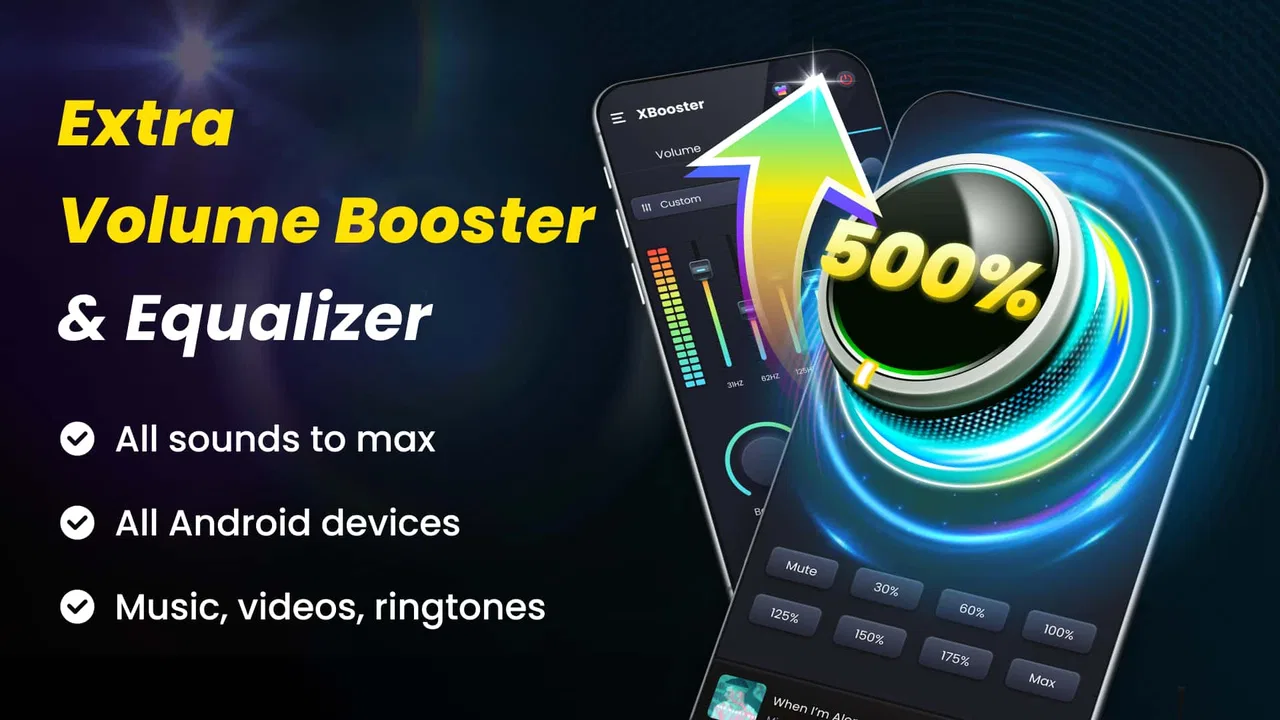
Volume Booster - Sound Booster
- 4.8
- Rating
- 10.00M
- Installs
- Free
- Price

 Analysis by App-foxy
I tried Volume Booster - Sound Booster with a fairly simple goal: make everyday listening feel fuller without replacing my music player. The app sits in the Music & Audio category and comes from Simple Design Ltd., presenting itself as a practical combination of bass booster, equalizer, and volume booster. That description is more useful than flashy, because the app’s value depends heavily on what you are listening to, which output device you use, and how much extra loudness your phone can safely deliver.
My first impression was that this is best understood as a quick sound-adjustment tool rather than a complete audio workstation. It can be handy when a podcast sounds thin, a video is difficult to hear in a noisy room, or inexpensive earphones need a little tonal help. At the same time, pushing every control upward is not a shortcut to high-quality sound. The most satisfying results came from making small changes and checking the result with several types of audio.
The app is free to install, suitable for Everyone, and supports devices running Android 8.0 or later. Its current version is 2.1.0.47. With more than ten million installs, an average rating of 4.8 from roughly 443 thousand ratings, and about 19 thousand written reviews, it is clearly a familiar choice for people looking for a straightforward volume and sound boost.
You May Also Like

 Blood Strike: 2.5 Anniversary
Blood Strike’s Loadouts Turn Every Drop Into a Tactical Gamble
A close look at Blood Strike’s custom loadouts: how fast access to signature weapons reshapes its battle royale rhythm, rewards preparation, and narrows the gap between fights.

 Pandora - Music & Podcasts
Pandora’s Music Is Easy to Start, but Harder to Recover
Pandora’s strength is its low-effort path from a seed to a station. Its weak spot is how much confidence it asks you to place in connection, setup, and quiet recovery.

 8 Ball Pool
 Is Built on Rivalries, Rematches, and Routine
A close look at the rivalries, rematches, shared routines, and unanswered safety questions that turn a quick pool match into a persistent mobile community.

 Samsung Music
’s Quiet Strength Is Playing What You Already Own
Its reach comes less from spectacle than from dependable access to a personal library. That simplicity is both the app’s strongest retention engine and its ceiling.

 AccuWeather: Weather Radar
AccuWeather Review: A Quick, Clear Forecast for Everyday Decisions
For everyday plans, the best forecast is the one you can understand quickly. AccuWeather makes rain timing, radar, and local conditions easy to act on, with a few trade-offs.

 Hill Climb Racing
Why Hill Climb Racing Still Turns Crashes Into One More Run
A tiny car, a bumpy hill and one more upgrade: Hill Climb Racing keeps resurfacing because its simple chaos makes every near-miss feel personal.
More From Our News Desk



Where the first setup usually becomes confusing
The main point of friction is not finding the controls; it is understanding what each control can realistically change. A volume booster may raise the perceived level, while an equalizer changes the balance between low, middle, and high frequencies. Bass boosting can make music feel warmer, but it can also make speech less clear or cause small speakers to sound strained. These are different jobs, even though they appear next to one another in the same kind of app.
I recommend starting with the phone’s normal volume at a moderate level, then adjusting one control at a time. If I raise the system volume, bass, and overall boost together, it becomes difficult to tell which setting helped and which one created distortion. A better routine is to play a familiar song, make a small change, listen for a few seconds, and then return to the original setting before testing another adjustment.
Another common misunderstanding is expecting the app to repair a weak physical speaker. Software can alter the signal sent to the speaker, but it cannot turn a tiny phone speaker into a dedicated audio system. If the sound is already rattling, muffled, or uneven because of dust, damage, a loose case, or a poor connection, more amplification may make the problem more obvious rather than solve it.
Bluetooth listening adds another layer. The phone may show a higher volume level while the headphones or speaker still apply their own internal limit. In that situation, the app may appear to do very little. I found it more useful to test the same setting through the phone speaker and then through the connected device, because the two outputs can react quite differently.
The important rule is to treat extra loudness as a finishing adjustment, not as the starting point. A clean, moderate signal usually sounds better than an aggressively boosted one. This is especially true with spoken audio, where harshness and clipping become tiring quickly.
What I check before blaming the app
Before changing any equalizer setting, I check whether the media player itself has a separate volume control, audio enhancement, or equalizer. Some players remember their own adjustments, and a second layer of processing can produce an exaggerated result. If the sound changes only inside one app, the issue may belong to that player rather than Volume Booster - Sound Booster.
I also check whether the phone is connected to the output I think it is using. A handset can silently switch from its speaker to Bluetooth earbuds, a car system, or another remembered device. Testing with Bluetooth turned off is a simple way to establish a baseline. If the sound improves immediately through the phone speaker, the connection or receiving device deserves attention.
Cases and protective covers can matter more than people expect. A thick case partly covering the speaker openings can make audio seem quiet or dull. Cleaning the openings gently, removing the case for a quick comparison, and checking the same clip again can save a lot of unnecessary tweaking. These are basic checks, but they are more reliable than endlessly increasing the boost.
How I approach the equalizer and bass controls
I use the equalizer as a correction tool. If vocals are buried under music, I make a restrained adjustment toward the middle frequencies. If a recording sounds overly sharp, I reduce the high end instead of adding bass. For music, I compare a track with clear vocals, a track with strong low frequencies, and an ordinary recording that I know well. One preset or setting that works for one song can be unpleasant on another.
The bass control deserves particular care. Low frequencies need more energy from a speaker, so a small increase can quickly expose the limits of phone speakers and budget earphones. When the bass becomes loose, buzzing, or muddy, I lower it rather than raising the overall volume to compensate. With spoken content, I often prefer little or no bass boost because clarity matters more than weight.
A useful habit is to make a change while listening at the level I normally use, then briefly test it at a quieter level. If the setting only sounds impressive when played loudly, it may be adding harshness rather than genuine detail. This is one of the less obvious trade-offs of a booster: louder can initially feel better, even when the signal is less balanced.
Setup checks that prevent most failed attempts
My setup process starts with a clean test. I close other audio apps, play a familiar recording, and confirm whether the phone is using its speaker, wired headphones, or Bluetooth. I then open the booster and make a small adjustment. This gives me a reference point and makes it easier to notice whether the app is affecting the sound at all.
If nothing seems to happen, I do not immediately assume the app is broken. I first return the phone’s normal media volume to a middle position, restart playback, and test again. Some audio sessions do not refresh their processing instantly after an output changes. Stopping the track and starting it again is a simple recovery step that often provides a clearer result than repeatedly tapping the same control.
I also avoid running several sound-enhancement tools at once. A phone manufacturer’s audio mode, a music player equalizer, wireless-earbud controls, and this app may all be processing the signal. The result can be unpredictable: excessive bass, a hollow voice, or a level that changes between tracks. For a fair test, I leave the other enhancements at their neutral or default positions and adjust only one layer.
When using headphones, I check both sides and try another pair if possible. If one earbud is quieter, the problem is unlikely to be fixed by a global booster. Likewise, if only one streaming service sounds low, I compare a locally stored recording or another player before changing the sound profile. This distinction matters because a global adjustment cannot correct every source-specific issue.
The free version is enough to evaluate the basic experience, which I appreciate. Optional in-app purchases range from $2.99 to $11.99 per item, so I would test the app with my normal devices and listening habits before paying for anything. The sensible question is not whether a paid option sounds attractive, but whether the free experience already solves the particular problem I have.
A realistic everyday listening routine
Imagine I am cooking while listening to a spoken program. The phone speaker sounds quiet over the kitchen noise, but increasing the bass makes the voice thicker without making it easier to understand. I would keep the bass low, make a modest overall adjustment, and place the phone where the speaker is not blocked. If the result remains unclear, moving closer or using headphones is likely to help more than adding further boost.
For music on inexpensive wired earphones, I take a different approach. I play a familiar song, add a small amount of low-end warmth, and then reduce the level if the kick drum starts to blur into the bass line. I also check a vocal track afterward. If the singer loses clarity, the setting is too strong for that pair of earphones, even if the first song sounded more exciting.
For a video with quiet dialogue and loud effects, I avoid chasing the loudest moment. I listen to a conversation scene first, adjust for understandable speech, and then check whether action scenes become uncomfortable. The best setting is often a compromise. Volume Booster - Sound Booster can help establish that compromise, but it cannot normalize every recording equally.
Recovering when a setting makes things worse
If the audio becomes distorted, I return the booster and equalizer adjustments toward neutral instead of trying to counteract one extreme with another. I then lower the phone’s media volume briefly and restart the track. This separates a bad setting from a temporary playback problem.
If sound disappears after switching outputs, I disconnect and reconnect the headphones or Bluetooth device, then test the phone speaker. I also check whether media volume, rather than ringtone volume, is being changed. These steps are deliberately simple: they restore a known baseline without inventing a complicated diagnosis.
When an adjustment works in one app but not another, I compare the players with the same recording if possible. If only one app behaves differently, I leave the booster alone and inspect that player’s own audio options. This workflow prevents me from applying a stronger system-wide effect to compensate for a single application’s behavior.
One practical limitation is that a sound booster cannot guarantee identical results across every source. Streaming services, games, video players, phone speakers, wired headphones, and Bluetooth hardware all handle audio differently. That is why I save my preferred approach mentally rather than assuming one aggressive setting will suit every situation.
When the app is not the real cause
There are several situations where I would stop adjusting software. If the phone speaker crackles even at normal volume, the hardware may be damaged or obstructed. If one side of a headset is consistently quieter, the headset, cable, or connector is more likely responsible. If Bluetooth audio cuts out or changes level, the connection or receiving device deserves testing before any equalizer work.
A recording that is badly mixed, heavily compressed, or unusually quiet may remain disappointing after boosting. Increasing its level can expose hiss and distortion along with the wanted sound. In that case, a better recording, a different player, or a closer listening position is a more sensible solution.
I would also skip this app if my priority is detailed manual audio production. Its appeal is convenience: quick bass, equalizer, and volume adjustments for ordinary listening. Someone who needs precise editing, recording, mixing, or studio monitoring should choose a dedicated audio application instead. Those tools are more appropriate when exact control matters more than speed.
Likewise, people who already have a well-tuned phone, high-quality headphones, and a reliable player equalizer may gain little. Adding another processing layer can make the sound less predictable. In that case, the built-in controls may be cleaner and easier to manage.
My practical verdict after using it
Volume Booster - Sound Booster is most convincing as a small utility for everyday listening problems. I like it when a device sounds slightly thin, when I need a modest lift for speech, or when a basic pair of headphones benefits from careful tonal adjustment. The combination of bass, equalizer, and volume controls gives it more flexibility than a simple system-volume shortcut, but that flexibility rewards restraint.
Its biggest weakness is also its central risk: louder output can be mistaken for better output. The app cannot overcome damaged hardware, a poor Bluetooth connection, a blocked speaker, or a badly recorded source. It may also make distortion and listening fatigue more noticeable when pushed too hard. I would begin with neutral settings, change one control at a time, and test across speech and music before deciding that a stronger boost is useful.
For an Android user on version 8.0 or later who wants a free way to experiment with sound, this is an easy app to try. Its Everyone rating makes it broadly accessible, and the large user base suggests it has found a clear audience. I would not install it expecting a replacement for proper headphones or a dedicated audio editor. I would install it as a practical adjustment layer that can improve a specific listening situation when used carefully.
After testing the usual alternatives, my preference depends on the problem. The phone’s built-in controls are better for simplicity and fewer moving parts. A player-specific equalizer is better when only one music app needs adjustment. A dedicated audio tool is better for advanced work. This app occupies the middle ground: faster and more adaptable than basic volume controls, but less precise and less dependable than hardware or specialist software.
My recommendation is therefore conditional but positive. Try the free experience with your actual phone, headphones, and favorite recordings. Keep the changes modest, compare the result at normal listening levels, and remove the app from the equation when the evidence points to hardware or source quality. Used that way, Volume Booster - Sound Booster is a useful companion rather than a magic fix, and that is exactly where it works best.
FAQs for Volume Booster - Sound Booster
01What is Volume Booster - Sound Booster and how does it work?
Volume Booster - Sound Booster is an app designed to enhance the audio output of your device beyond its default settings. It works by modifying the audio signal processing to amplify sound, providing a louder and clearer listening experience. This can be especially useful for media playback, calls, or notifications.
02Is Volume Booster - Sound Booster safe for my device?
While the app is generally safe, users should be cautious as excessive volume boosts can potentially damage the device's speakers or hearing. It's important to follow the app's guidelines and use the boost features moderately. Always start with lower settings and gradually increase to avoid distortion.
03Does Volume Booster - Sound Booster require any special permissions?
Yes, the app typically requires permissions to modify audio settings and access your device's media files. It may also need permission to run in the background to ensure consistent performance. These permissions are necessary for the app to function effectively and provide the best user experience.
04Can Volume Booster - Sound Booster be used with all types of media?
The app is compatible with a wide range of media types, including music, videos, games, and calls. However, its effectiveness can vary depending on the app or service you are using. Some streaming services might have built-in volume limitations that the booster cannot override.
05Is Volume Booster - Sound Booster free to use?
The app often offers a free version with basic features, but to unlock advanced functionality, a premium version might be available. The premium version could include features like ad-free usage, higher boost levels, and customizable settings, providing a more enhanced user experience.
Pros
- Enhances overall audio output effectively.
- User-friendly interface with easy controls.
- Compatible with a wide range of devices.
- Minimal impact on battery life.
- No noticeable lag or delay in boosting.
Cons
- May distort sound at maximum levels.
- Contains ads that can be intrusive.
- Limited customization options available.
- Some features require in-app purchases.
- Not compatible with all music apps.

Volume Booster - Sound Booster
Gallery